
Android Toaster Guide: How to Implement Effective Toast Notifications in Your App
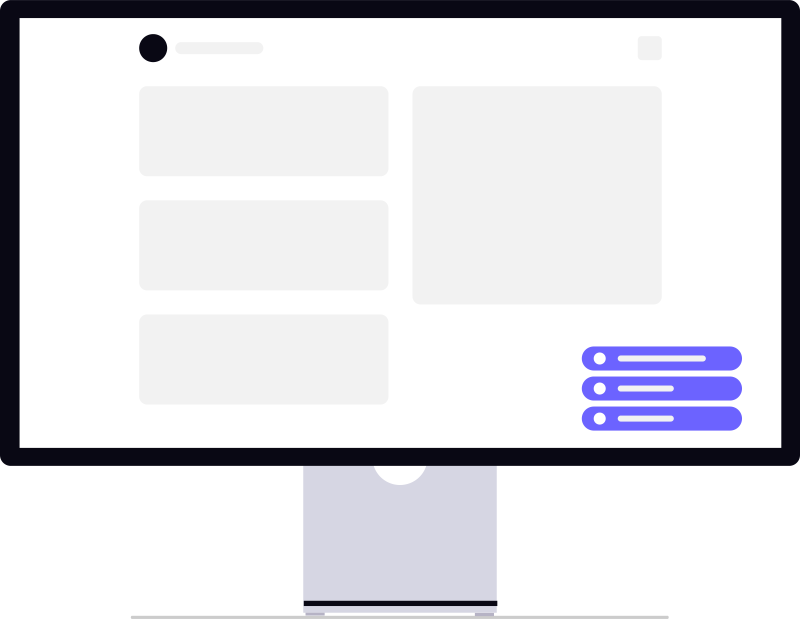
An android toaster is a transient, non-interactive notification used to provide simple feedback without interrupting user flow. Implement it using Toast.makeText() with a context, message, and duration (LENGTH_SHORT or LENGTH_LONG), ensuring you call .show() to make the notification visible to the user.
If you have spent any time in Android development, you know the "Toast." It is that small, greyish bubble that pops up at the bottom of the screen, tells the user something happened, and then vanishes into thin air. In technical terms, we are talking about the android toaster mechanism—a transient notification designed to provide simple feedback without interrupting the user's flow.
On the surface, implementing a Toast is one of the easiest things you can do in Android Studio. But there is a massive difference between making a Toast "work" and making it "effective." Most developers treat Toasts as an afterthought, often overusing them or placing them in spots where they actually hinder the user experience. When used correctly, they are a subtle way to confirm an action; when used poorly, they feel like digital clutter.
The Basics: Getting a Simple Toast on Screen
For those just starting out or looking for a quick refresher, the standard Toast is handled via the Toast.makeText() method. It requires three primary arguments: the context, the text you want to display, and the duration.
Here is the standard implementation in Java:
Toast.makeText(getApplicationContext(), "Changes saved successfully!", Toast.LENGTH_SHORT).show();
And for those using Kotlin (which is the modern standard for most professional projects):
Toast.makeText(applicationContext, "Changes saved successfully!", Toast.LENGTH_SHORT).show()
It is a common rookie mistake to forget the .show() method at the end. Without it, the Toast object is created in memory, but it never actually appears on the screen. If your notification isn't showing up, check that first.
Choosing the Right Duration
Android gives you two built-in constants: LENGTH_SHORT and LENGTH_LONG. While the exact timings can vary slightly by OS version, SHORT is typically around 2 seconds and LONG is around 3.5 seconds. A good rule of thumb is to use SHORT for simple confirmations (like "Message Sent") and LONG only when the text is longer or requires a bit more cognitive effort to read.
When to Use an Android Toaster (and When to Stop)
The biggest challenge with the android toaster isn't the code—it's the strategy. Because they are so easy to implement, it is tempting to use them for everything. However, Toasts have significant limitations: they are non-interactive, they cannot be dismissed by the user, and they are easily missed if the user is multitasking.
Use Toasts for:
- Low-priority confirmations: "File uploaded," "Settings updated," or "Added to favorites."
- Background event alerts: Letting the user know a sync has finished while they are on a different screen.
- Quick debugging: During the early stages of development, Toasts are great for verifying that a specific function is being triggered.
Avoid Toasts for:
- Critical errors: If a payment fails or a server is down, a Toast is too subtle. Use a Dialog or a full-screen error state instead.
- Actionable alerts: If the user needs to click "Undo" or "Retry," a Toast is useless because it doesn't support clicks.
- Long messages: If your message is more than one sentence, it will either be cut off or stay on screen so long that it becomes an annoyance.
If you find yourself struggling with how to communicate complex errors or system states, you might be facing some of the android application development challenges that often crop up when scaling a simple MVP into a professional product.
Moving Beyond the Default: Custom Toasts
The default grey bubble is fine for internal testing, but for a consumer-facing app, it often looks generic. You can create a custom layout to match your brand's colours and typography. This involves creating a separate XML layout file and inflating it into the Toast object.
The Implementation Workflow
First, design your custom layout (e.g., custom_toast_layout.xml) with a LinearLayout or ConstraintLayout. You can add an icon, a custom background with rounded corners, and a TextView for the message.
Then, in your activity, you inflate the view:
LayoutInflater inflater = getLayoutInflater();

View layout = inflater.inflate(R.layout.custom_toast_layout, findViewById(R.id.custom_toast_container));

Toast toast = new Toast(getApplicationContext());

toast.setDuration(Toast.LENGTH_LONG);

toast.setView(layout);

toast.show();
A word of caution: Starting with Android 11 (API 30), Google has placed restrictions on custom Toasts when they are called from the background. For foreground activities, they still work, but for background services, the system will revert to the standard text Toast. This is a deliberate move to prevent apps from creating misleading or intrusive overlays.
Practical Trade-offs: Toast vs. Snackbar
In the modern Android ecosystem, the Snackbar (from the Material Design library) has largely replaced the Toast for many use cases. As a developer, you need to know when to choose one over the other.
The Case for Snackbar:
- Interactivity: Snackbars can have an "Action" button (e.g., "Undo").
- Context: They are tied to a specific view, meaning they appear within the app's layout rather than floating on top of the entire OS.
- Swipe-to-dismiss: Users can swipe a Snackbar away if it's in their way.
The Case for Toast:
- Independence: Toasts don't require a parent view. They can stay visible even if the user navigates to a different activity.
- Simplicity: For a "fire-and-forget" notification, the Toast is faster to implement and requires less boilerplate code.
If you are building a high-end user interface, we generally recommend using Snackbars for 90% of in-app feedback and reserving the android toaster for the remaining 10% of system-level or background notifications. For a deeper dive into how these elements fit into a larger design system, check out our guide on implementing toasts for better UX.
Common Implementation Mistakes to Avoid
Having built and maintained several Android apps, I have seen a few recurring patterns that lead to "Toast fatigue" or app crashes.
1. The "Toast Storm"
This happens when a developer puts a Toast inside a loop or a high-frequency listener (like a sensor update). If the app triggers ten Toasts in two seconds, Android queues them. The result? The user will see notifications popping up for the next minute, long after the actual event has passed. Always ensure your logic prevents multiple Toasts from firing simultaneously.
2. Context Leaks
Using Activity.this as the context for a Toast that might outlive the Activity can occasionally lead to memory leaks. It is generally safer to use getApplicationContext() for simple Toasts, as they don't need to be tied to the lifecycle of a specific screen.
3. Over-reliance on Toasts for Onboarding
Never use Toasts to teach a user how to use your app. Toasts disappear too quickly. For onboarding, use Tooltips, Coach Marks, or a dedicated walkthrough. If a user misses a Toast, they miss the information entirely.
Conclusion
The android toaster is a simple tool, but its simplicity is where the danger lies. It is easy to implement, but easy to misuse. The goal of any notification should be to inform the user without frustrating them. By sticking to low-priority confirmations, keeping messages brief, and knowing when to switch to a Snackbar, you can ensure your app feels professional and polished.
By the Numbers
- Android continues to maintain a dominant position in the global mobile operating system market, making toaster implementation critical for reaching the majority of mobile users. (StatCounter Global Stats)
- The scale of Android's global user base necessitates standardized UI patterns to ensure accessibility across diverse hardware specifications. (StatCounter Global Stats)
The difference between a functional app and a professional one lies in the subtle details of user feedback, such as the strategic placement of Toast notifications.
— Pinakinvox Engineering Team
Frequently Asked Questions
Can I make a Toast clickable?
Why are my Toasts appearing in a queue and taking forever to disappear?
cancel() on the previous one before showing a new one.
Does the Toast duration exactly match LENGTH_SHORT and LENGTH_LONG?
Is it better to use Toast or Snackbar for "Message Sent" alerts?
Sources
Book a strategy call
From zero-to-one product development to scaling infrastructure. Pinakinvox partners with high-growth teams to solve complex technical challenges.
Recommended by professionals.
Everything published here is tested and deployed in live production systems. No theories.